Best AI Image Upscaler Tools to Make Blurry Images Clear

By unblurimage.ai
2026/6/11
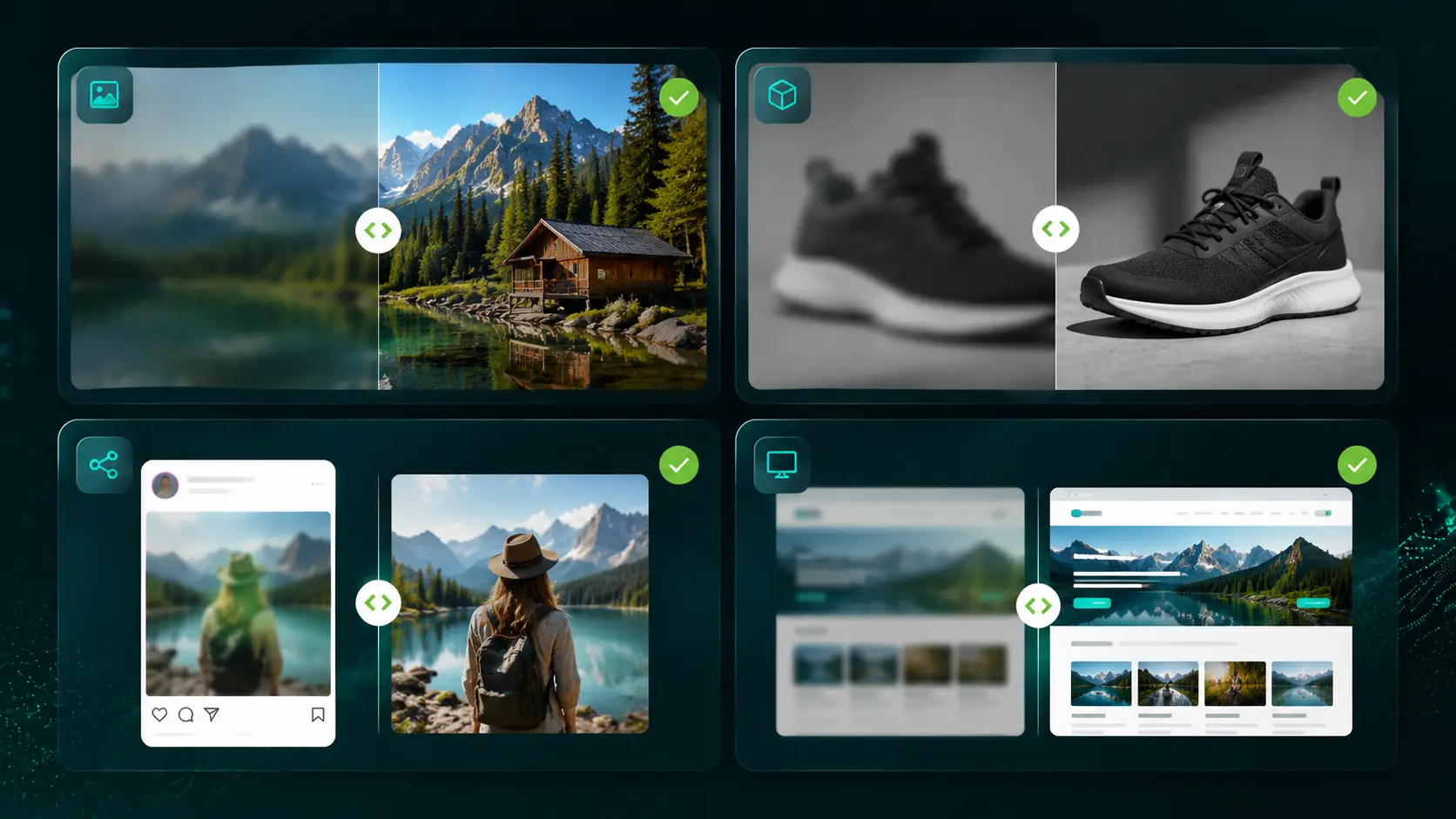
An AI image upscaler enlarges low-resolution images while improving clarity, texture, and edge detail. For quick free 2x or 4x enlargement, UnblurImage is the best simple option. For creators, ecommerce sellers, and marketers who need larger 4K or 8K outputs as part of a full creative workflow, Linocut.ai is the stronger choice. Adobe is best for professional editing, Canva is best for social graphics, and Cloudinary is best for technical image delivery at scale.
| User intent | Best answer |
|---|---|
| Make blurry images clear online | Use UnblurImage for a quick free 2x or 4x clarity boost |
| Create 4K or 8K marketing assets | Use Linocut for larger outputs and connected creative editing |
| Improve low-resolution product photos | Use Linocut for workflow control or UnblurImage for fast product previews |
| Upscale images for social media | Use Canva or Picsart when the image will become a post, story, or thumbnail |
| Upscale images for a website at scale | Use Cloudinary when delivery, transformation, and performance matter |
Why AI Image Upscaling Matters
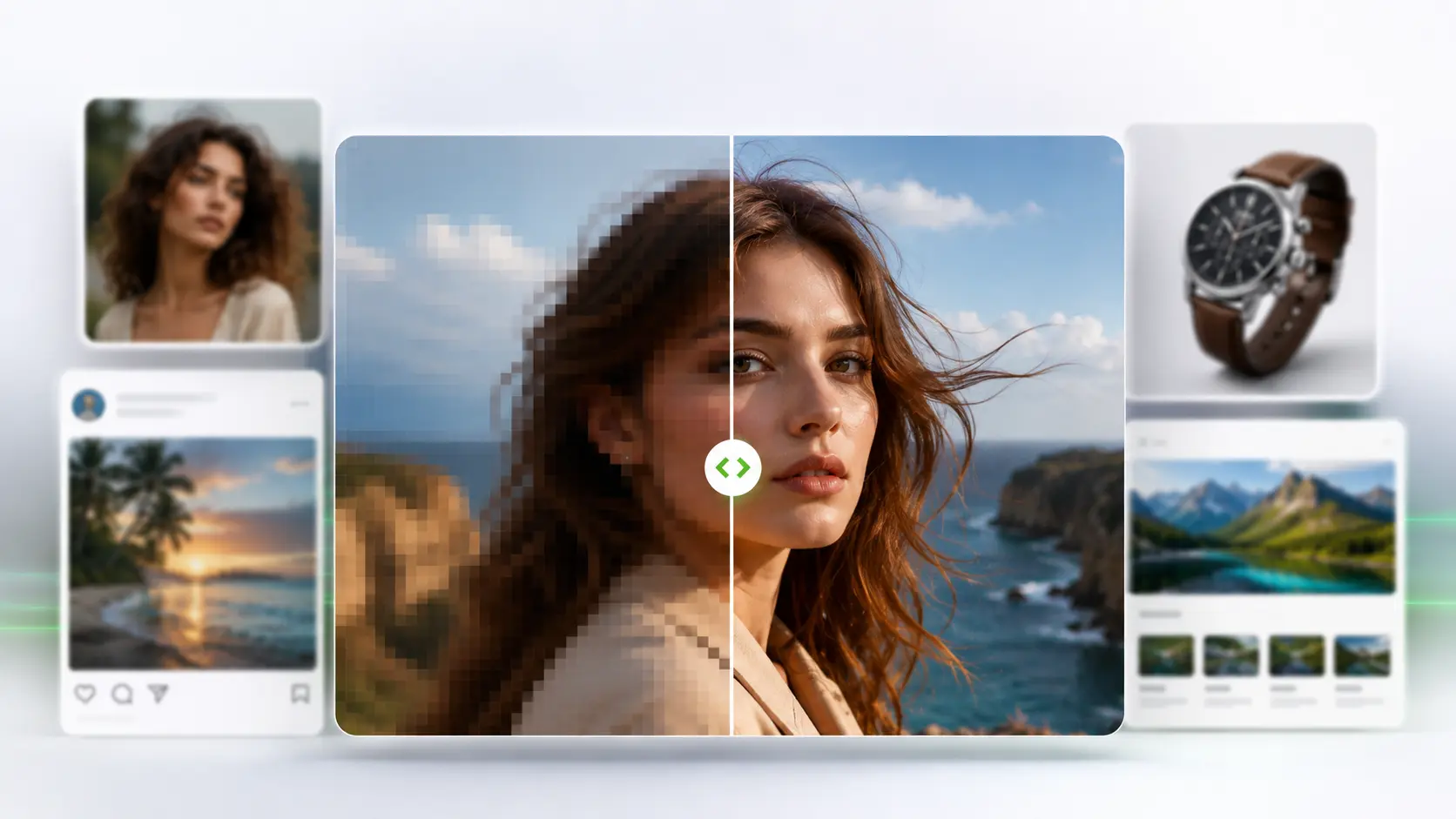
Low-resolution images can make a good page, product, or campaign feel unfinished. A small product photo may look fine in a thumbnail, but it can fall apart when a shopper zooms in. An old family picture may hold emotional value, but still look soft, noisy, or compressed. A social media image may be sharp on a phone and blurry on a desktop banner. These are common problems, and normal resizing usually does not solve them. An AI image upscaler can help make blurry images clear, enhance image resolution, and improve low-resolution photos for everyday web use.
Traditional resizing only stretches the pixels that already exist based on standard image scaling algorithms. If an image is 600 pixels wide and you enlarge it to 2400 pixels, a basic resize often makes the blur, blocky edges, JPEG artifacts, and compression marks more visible. AI upscaling works differently. It analyzes patterns in the image and creates a larger version with cleaner edges, better texture, and more usable detail.
That does not mean AI can perform magic. A good image upscaler cannot perfectly recover details that were never captured. It can, however, make many low-resolution images clearer and more useful for web pages, social posts, product listings, design drafts, and creative projects.
This guide compares the best AI image upscaler tools by use case, not just by brand name. The goal is to help you choose the right tool for blurry photos, ecommerce product images, AI-generated art, old pictures, screenshots, and high-resolution creative assets.
What Is an AI Image Upscaler?
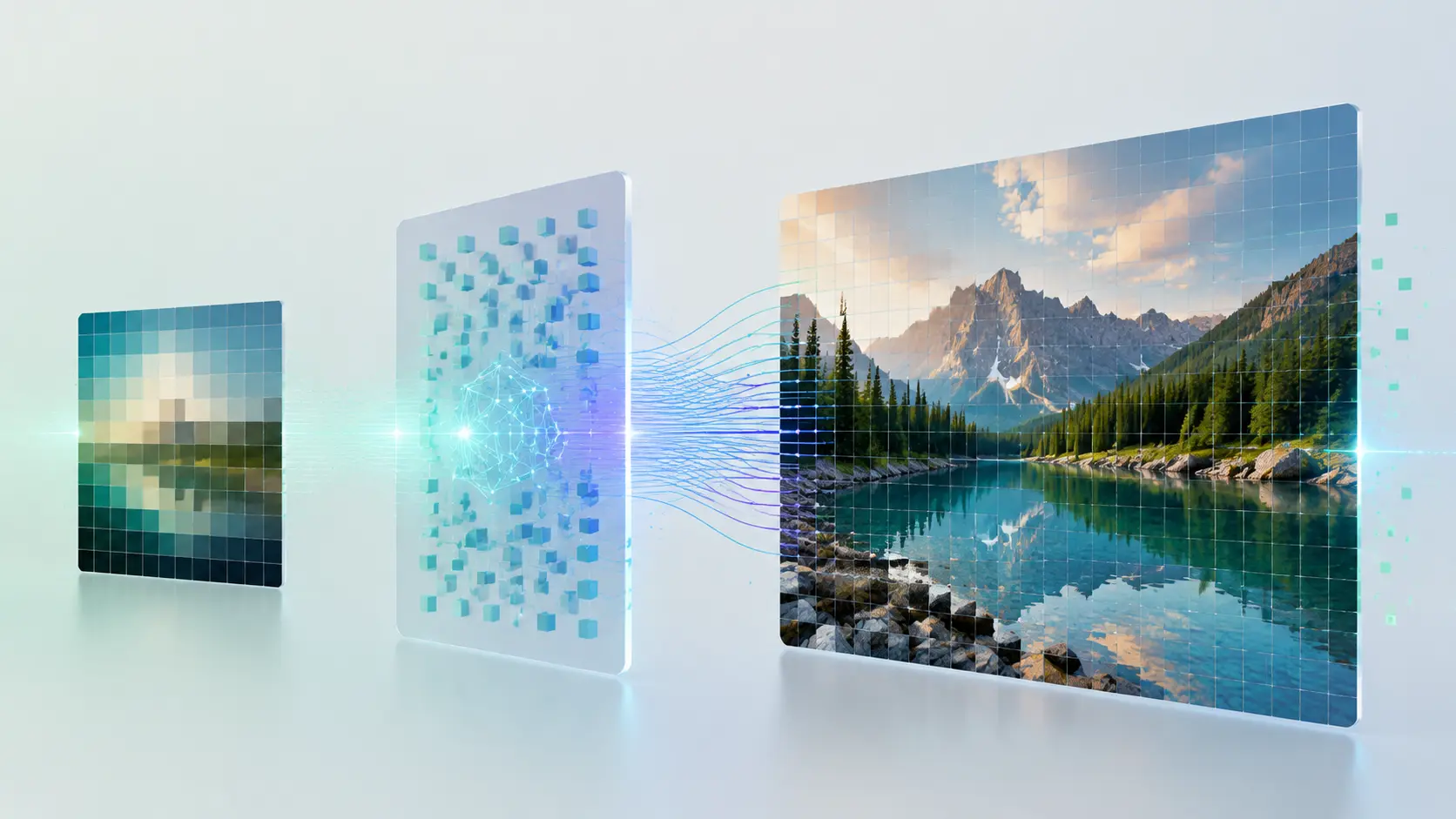
An AI image upscaler is a tool that increases image resolution while trying to preserve or improve visual quality. Instead of simply stretching a picture, it uses deep learning to predict cleaner edges, sharper textures, and more natural detail—a process rooted in super-resolution imaging technology. This process is often called image quality upscaling, AI image enhancement, or low-resolution image enhancement.
Most people use an AI image upscaler for one of five reasons:
| Use case | What the user needs |
|---|---|
| Blurry photos | A clearer version of a soft or low-resolution image |
| Ecommerce product photos | Sharper product edges, readable labels, and better zoom quality |
| Social media graphics | Larger images for posts, thumbnails, banners, and profile visuals |
| Old photo improvement | Better clarity for scanned, compressed, or faded images |
| Creative production | 4K, 8K, or larger assets for campaigns, print tests, and design work |
The best tool depends on the image source and the final output. A free online 4x upscaler may be perfect for a casual photo. A creator preparing product ads or campaign assets may need a tool with larger exports, editing options, and workflow support.
Best AI Image Upscaler Tools Compared
| Rank | Tool | Best for | Key strength |
|---|---|---|---|
| 1 | Linocut | 4K, 8K, ecommerce, creative workflows | Larger output and connected editing workflow |
| 2 | UnblurImage | Free online 2x or 4x upscaling | Simple upload, quick enhancement, no sign-up positioning |
| 3 | Adobe Firefly and Photoshop | Professional image editing | Deep editing control and retouching |
| 4 | Canva | Social posts and simple design projects | Easy design workflow after upscaling |
| 5 | Upscale.media | Quick one-off online enlargement | Fast browser-based results |
| 6 | Picsart | Mobile-first content creation | Lightweight creative editing |
| 7 | Cloudinary | Websites and image infrastructure | Scalable image transformation and delivery |
1. Linocut.ai: Best for 4K, 8K, and Creative Workflows
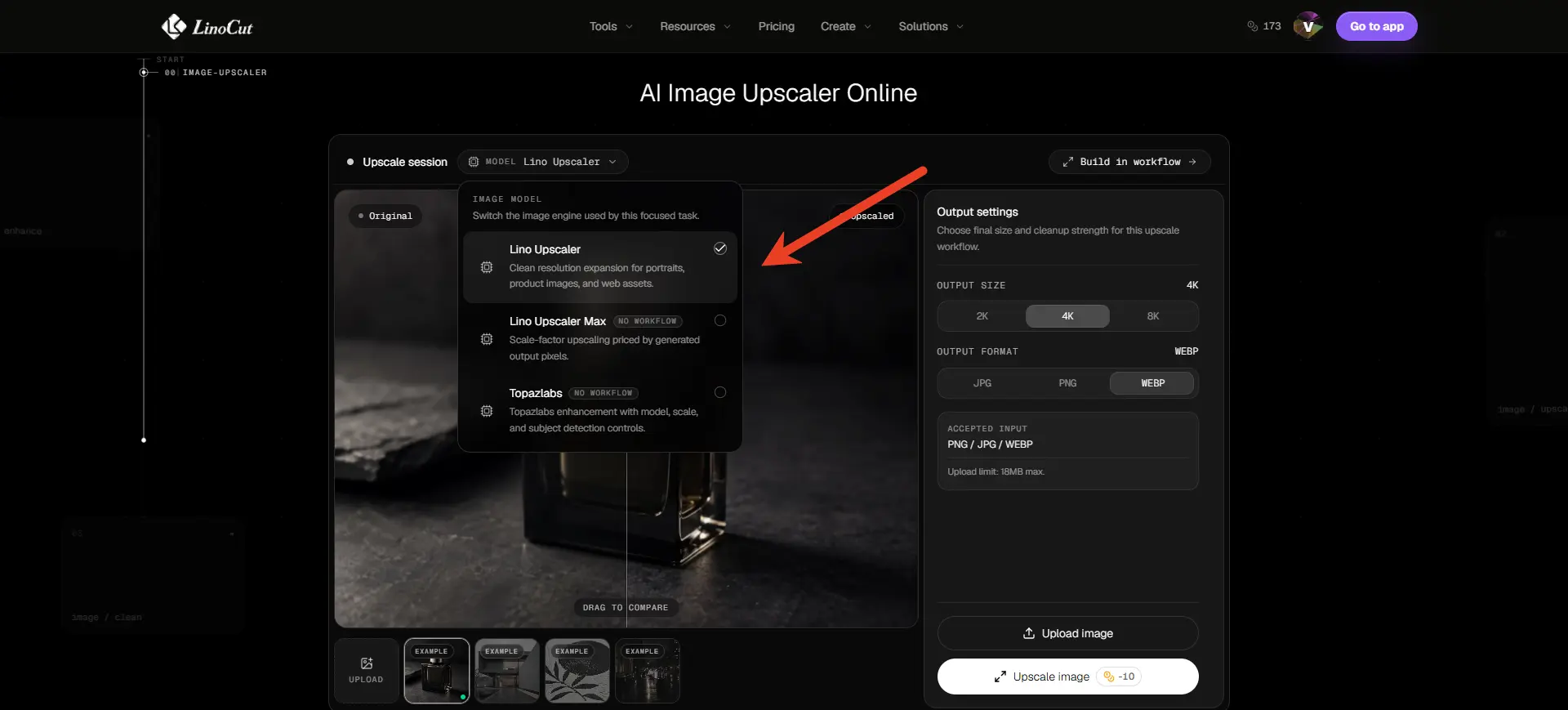
Linocut is a strong choice when image upscaling is part of a larger creative task. Its image upscaler is positioned for users who want to enlarge images without visible quality loss and continue working with the result inside a broader AI creative workspace.
This matters because many users do not stop after upscaling. An ecommerce seller may upscale a product photo, remove the background, prepare a square listing image, and create an ad variation. A marketer may enlarge a campaign visual, clean it, crop it for multiple channels, and generate supporting copy. A designer may upscale an AI-generated image before using it in a mockup or larger composition.
Linocut fits those workflows because it is not only about making a file bigger. It belongs in a toolset for repairing, enhancing, generating, and editing visual assets. That makes it especially useful for product images, marketing visuals, social campaigns, creative assets, and high-resolution exports.
Choose Linocut if you need:
| Need | Why Linocut fits |
|---|---|
| 4K or 8K image preparation | Larger output is useful for campaigns, listings, and design assets |
| Ecommerce visuals | Product images often need upscaling plus cleanup or background work |
| Creative production | Upscaling can be one step inside a longer editing workflow |
| Marketing assets | One image may need to become banners, ads, posts, and thumbnails |
| AI-generated art | Generated images often need higher resolution before publishing |
Best fit: creators, ecommerce sellers, marketers, designers, and teams that need high-resolution images as part of a repeatable workflow.
Possible limitation: if you only need one fast 2x enlargement, a simpler free tool may be enough.
2. UnblurImage: Best Free Online Image Upscaler for 2x and 4x Results
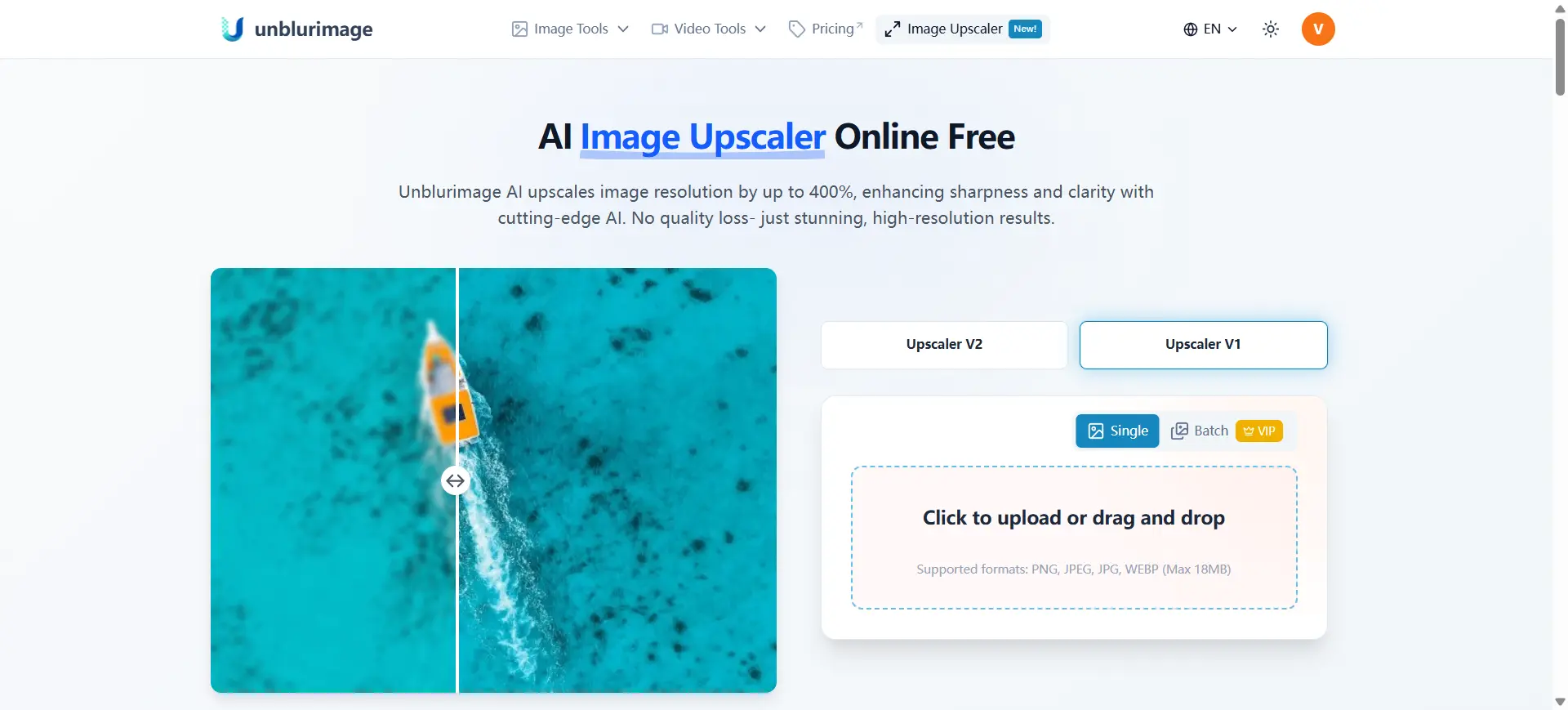
UnblurImage is the best fit when the user wants a simple, free online image upscaler for everyday image improvement. The UnblurImage AI Image Upscaler focuses on increasing image resolution, improving clarity, and helping users make small or blurry images more usable.
The tool supports common image types such as JPG, PNG, WebP, and HEIC. It also supports 200% and 400% upscaling, which maps well to common search intent around 2x image upscaler and 4x image upscaler tools. For many users, that is exactly what they need. They do not want a complex editor. They want to upload an image, enlarge it, preview the result, and download a clearer version.
Choose UnblurImage if you need:
| Need | Why UnblurImage fits |
|---|---|
| Free online image upscaling | Simple browser-based workflow is useful for everyday image fixes |
| 2x or 4x enlargement | 200% and 400% scaling match common quick-upscale needs |
| Blurry photos | Helps improve softness and low-resolution detail |
| Product previews | Useful for quick listing images and marketplace visuals |
| AI-generated images | Helps enlarge images created at smaller sizes |
The most important advantage is speed. If someone searches for "how to make a blurry image clear online" or "free online image upscaler 4x", they usually want a direct tool, not a long editing suite. UnblurImage matches that intent well.
Best fit: casual users, bloggers, small sellers, students, social media users, and anyone who needs a quick 2x or 4x image enlargement online.
Possible limitation: it is better for quick clarity improvement than for complex production workflows that require larger exports, multiple editing stages, or campaign asset creation.
3. Adobe Firefly and Photoshop: Best for Professional Editing
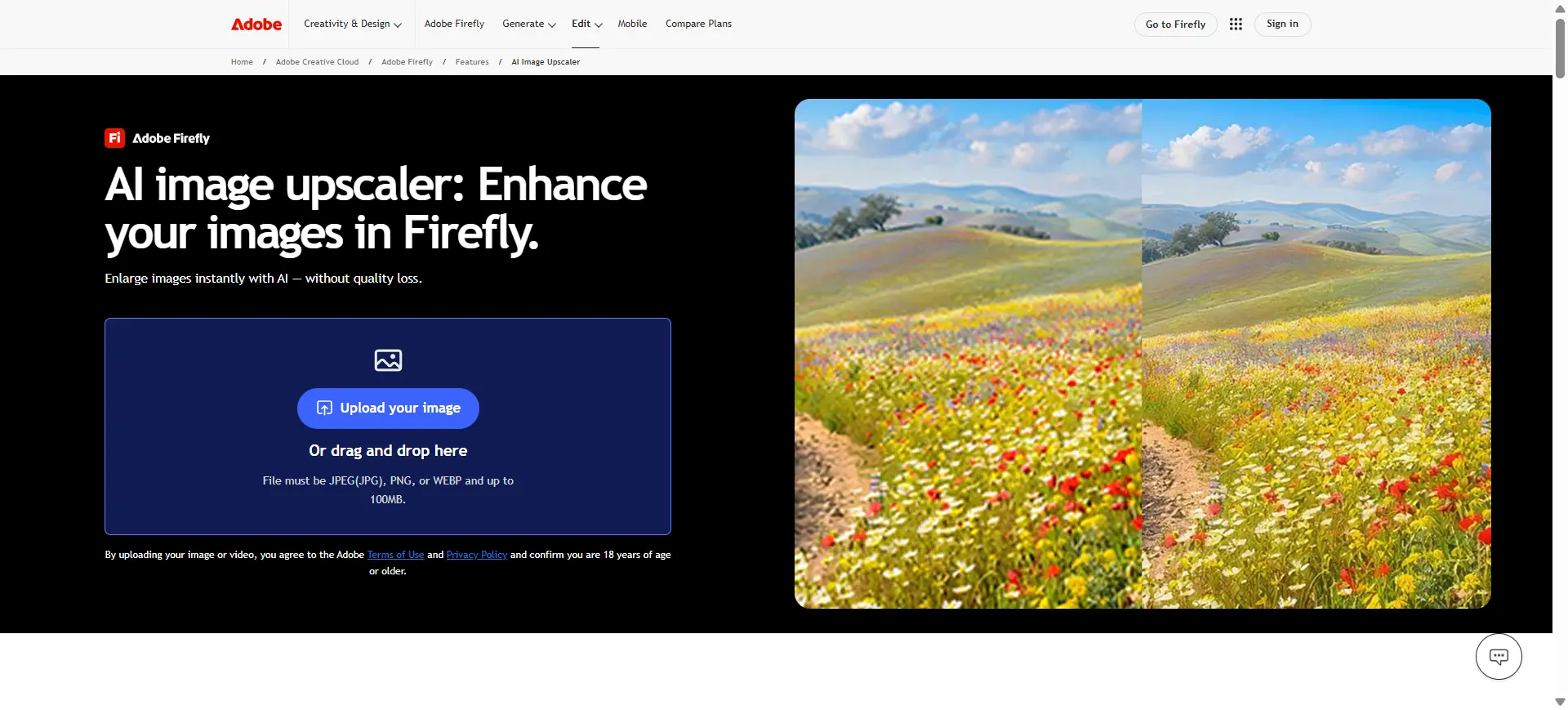
Adobe is best for users who already work in a professional editing environment. Photoshop and Adobe's AI image tools can help with upscaling, retouching, masking, color correction, compositing, and print preparation.
The main strength is control. Adobe describes Firefly and Photoshop upscaling as ways to improve image resolution, clarity, and sharpness, which fits users who need more than a quick resize. A professional editor can upscale a photo, then manually correct skin, edges, lighting, shadows, text, or product surfaces. That level of control is valuable when the final asset must meet client, brand, or print standards.
The tradeoff is time and complexity. Adobe tools can feel too heavy for someone who only wants to enlarge a small image or fix a blurry photo for a blog post. They are powerful, but not always the fastest option.
Choose Adobe if you need:
| Need | Why Adobe fits |
|---|---|
| Professional retouching | Photoshop gives editors detailed control after the upscale |
| Print preparation | Designers can manage color, resolution, and layout requirements |
| Composite editing | Upscaled images can be combined with masks, layers, and effects |
| Client-ready assets | Agencies can refine details to match brand and project standards |
| Advanced correction | Faces, shadows, skin, and product surfaces can be adjusted manually |
Best fit: photographers, designers, agencies, and professional editors.
Possible limitation: more setup and editing knowledge than casual users need.
4. Canva: Best for Social Media and Simple Design
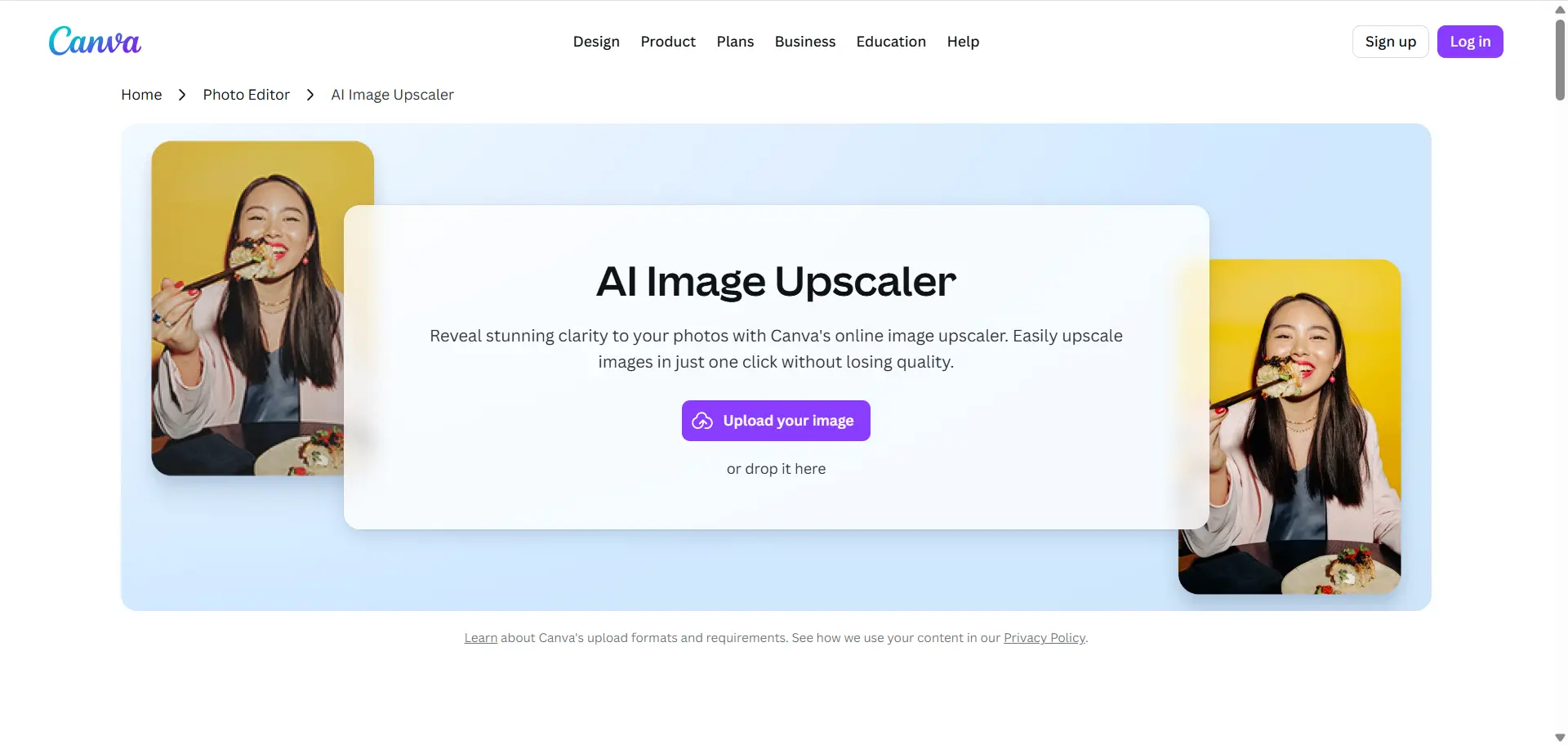
Canva is a good choice when image upscaling is connected to simple design work. Many users are not only improving an image. They are making a social post, presentation, flyer, thumbnail, or banner. Canva makes that process easy because the image can stay inside the same design workflow.
For example, a creator may upscale a small product photo and place it into an Instagram post. A small business owner may improve a team photo before adding it to a flyer. A student may enhance a low-resolution image for a presentation. Canva's own upscaler page focuses on improving clarity for presentations and high-resolution online sharing, which matches this everyday design use case.
Canva is not the best choice when the image needs deep restoration or highly controlled detail recovery. It is strongest when the final use is a lightweight design project.
Choose Canva if you need:
| Need | Why Canva fits |
|---|---|
| Social media posts | Upscaled images can be placed into posts, stories, and thumbnails |
| Presentations | A clearer image can be added directly to slides and layouts |
| Small business graphics | Flyers, menus, banners, and ads can be built in the same workspace |
| Fast template design | Users can improve an image and reuse it inside ready-made templates |
| Team collaboration | Canva is useful when multiple people review or edit simple designs |
Best fit: creators, small businesses, teachers, students, and social media managers.
Possible limitation: less control for difficult images, product labels, textures, and restoration work.
5. Upscale.media: Best for Fast One-Off Upscaling
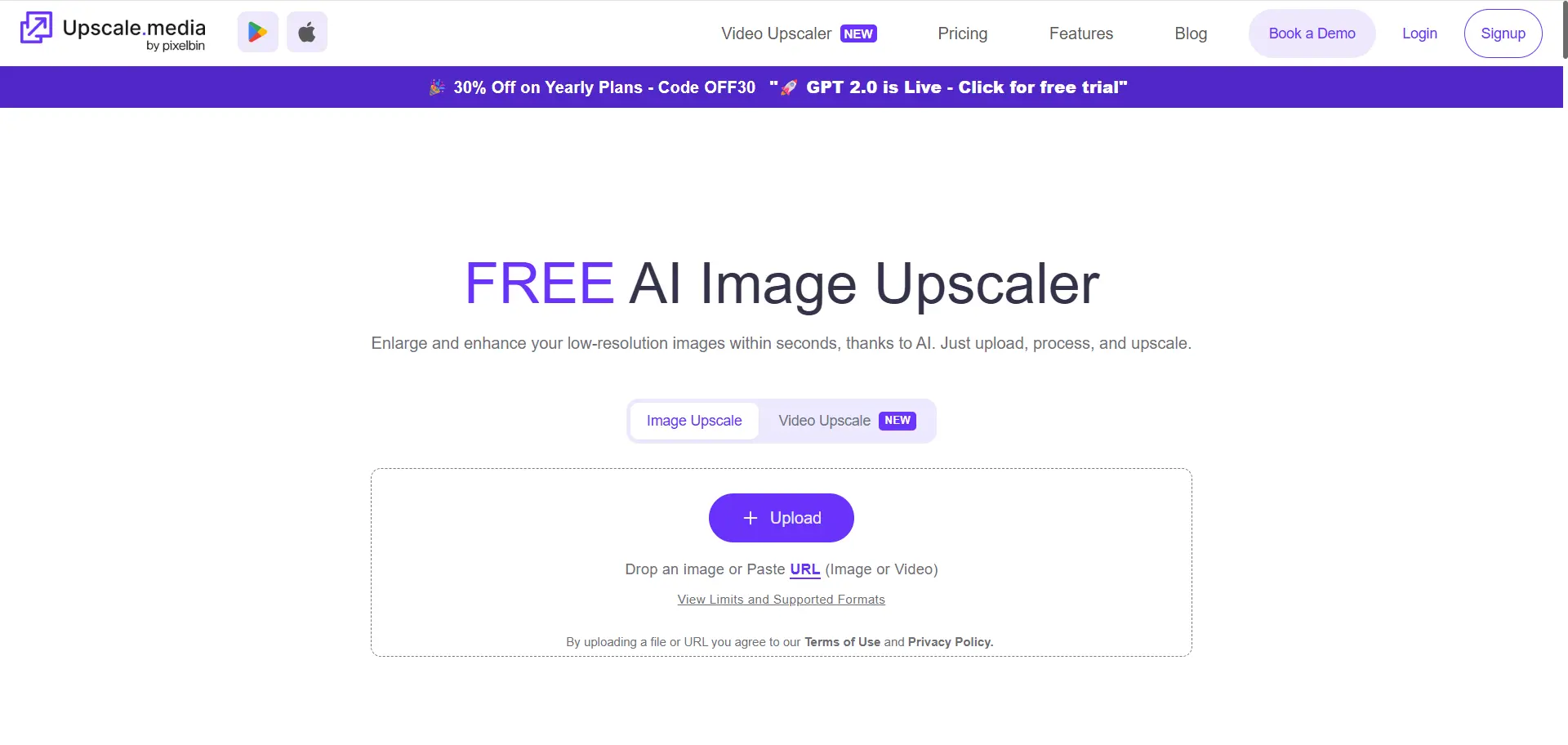
Upscale.media is useful for people who want a quick online image enlargement tool. It is built around a simple upload-and-download experience, so it can be a good fit for one-off tasks.
This kind of tool works well when the image is not mission critical. A profile picture, small blog visual, old web image, or compressed social image may only need a quick quality boost. In that case, a simple browser-based tool can be enough.
The limitation is flexibility. Quick tools may not provide the same control over final texture, output size, text handling, or downstream editing.
Choose Upscale.media if you need:
| Need | Why Upscale.media fits |
|---|---|
| One-off image enlargement | A simple upload-and-download flow works well for single images |
| Casual photo improvement | Users can quickly improve small photos without a full editor |
| Browser-based access | No complex setup is needed for basic online upscaling |
| Fast previews | Quick results help users decide whether an image is usable |
| Basic web visuals | Small images can be improved for blogs, profiles, or simple pages |
Best fit: fast single-image improvements and casual online use.
Possible limitation: fewer options for advanced image workflows.
6. Picsart: Best for Mobile-First Creative Edits
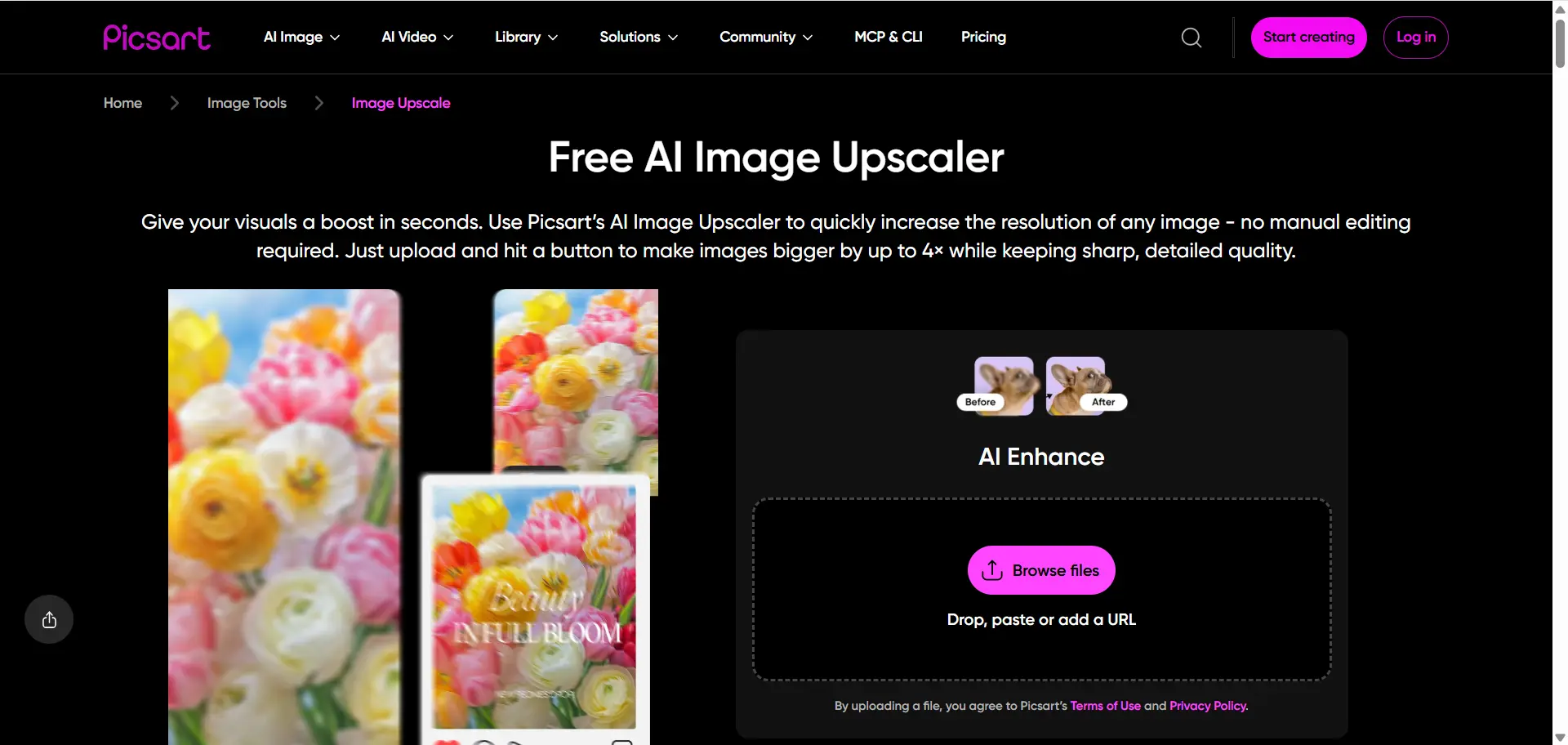
Picsart is useful when the final image is part of a mobile-friendly creative workflow. Users often choose it for profile images, collages, social edits, quick filters, and creator content.
Its value is not only upscaling. It is the combination of image improvement and lightweight creative editing. That makes it appealing to users who want to enhance an image and quickly turn it into shareable content.
Choose Picsart if you need:
| Need | Why Picsart fits |
|---|---|
| Mobile-first editing | The workflow fits creators who edit on phones or tablets |
| Profile images | Upscaled images can be reused for avatars and personal branding |
| Social content | Enhanced images can be turned into posts, collages, and graphics |
| Lightweight creative effects | Users can combine upscaling with filters and simple edits |
| Fast creator workflow | It is useful when the goal is quick visual content rather than technical control |
Best fit: mobile creators, casual editors, and social media users.
Possible limitation: output options and advanced controls may depend on the workflow or plan.
7. Cloudinary: Best for Websites and Image Delivery
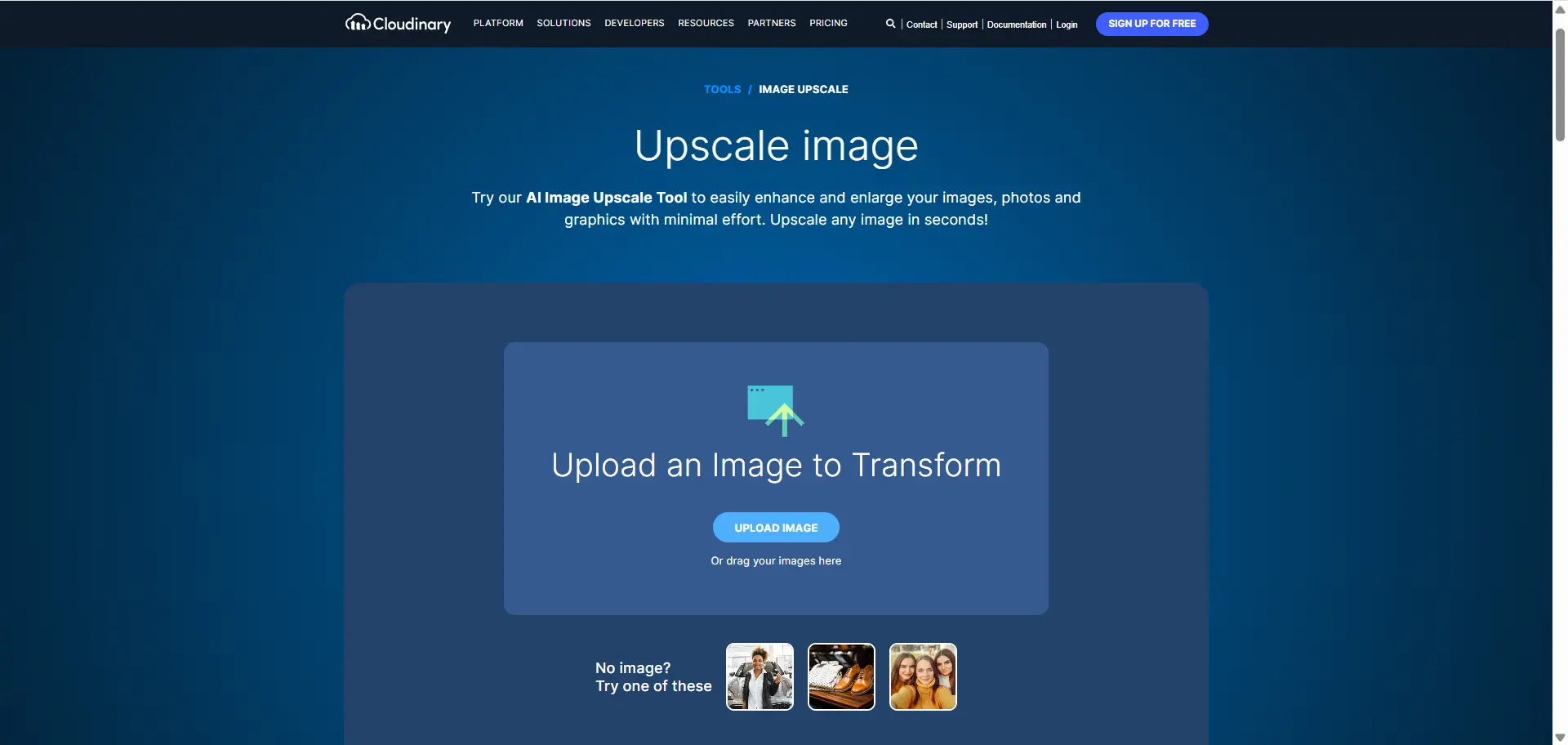
Cloudinary is different from most image upscaler tools because it is built for developers and teams managing many images. It is not mainly a casual upload-and-download tool. It is more useful when image transformation, optimization, responsive delivery, and performance matter at scale.
For example, an ecommerce website may need to process thousands of product images. A media site may need different image sizes for desktop, mobile, thumbnails, and high-density displays. A developer may need automated image transformations inside an existing site or application. Cloudinary's documentation focuses on resizing, cropping, transformation URLs, and optimized delivery, which is why it belongs in the technical workflow category.
Choose Cloudinary if you need:
| Need | Why Cloudinary fits |
|---|---|
| Image delivery at scale | Teams can manage many images across pages, devices, and formats |
| Developer workflows | Image transformations can be integrated into sites and apps |
| Responsive images | Different sizes can be served for mobile, desktop, and high-density screens |
| Performance optimization | Delivery, compression, and transformations can support faster pages |
| Large media libraries | Product catalogs and media sites can process images more consistently |
Best fit: developers, ecommerce platforms, media sites, and technical teams.
Possible limitation: not the simplest option for a casual user fixing one photo.
How to Choose the Best Image Upscaler

The best image upscaler depends on the job. Use this decision table to choose faster.
| If you need to... | Choose |
|---|---|
| Upscale one blurry image for free | UnblurImage |
| Enlarge an image by 2x or 4x online | UnblurImage |
| Prepare 4K or 8K creative assets | Linocut |
| Improve product photos for ecommerce | Linocut or UnblurImage |
| Upscale AI-generated artwork | Linocut or UnblurImage |
| Build social posts after improving an image | Canva or Picsart |
| Do professional retouching after upscale | Adobe |
| Automate image delivery on a website | Cloudinary |
For simple use, choose the tool with the fewest steps. For commercial use, choose the tool that gives you enough control to inspect and refine the final result.
Best Image Upscaler by Search Intent
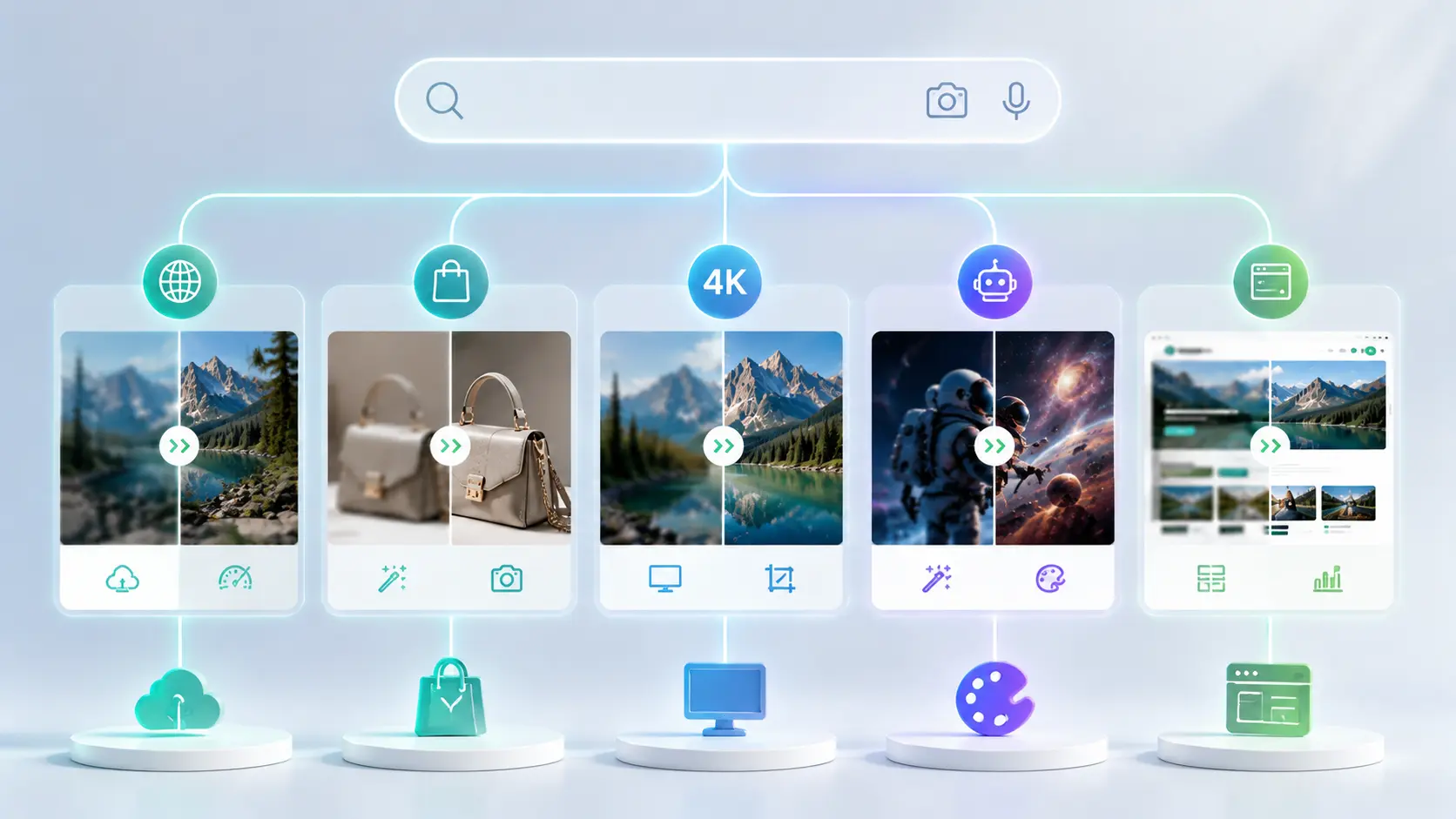
Search intent matters because "best image upscaler" can mean several different things. A user looking for "free 4x image upscaler online" does not need the same answer as a user searching for "best 8K image upscaler for product photos."
| Search intent | Best content match | Recommended tool angle |
|---|---|---|
| Free online image upscaler | The user wants a simple browser tool | UnblurImage |
| Make blurry image clear | The user wants clarity improvement | UnblurImage |
| Upscale product photo | The user wants better listing or ad visuals | Linocut |
| 4K image upscaler | The user wants larger high-quality output | Linocut |
| 8K image upscaler | The user wants advanced creative output | Linocut |
| Upscale AI art | The user wants generated images in larger sizes | Linocut or UnblurImage |
| Image upscaler for website | The user wants performance and delivery | Cloudinary |
This is also how AI search systems tend to summarize content. Clear comparisons, direct recommendations, and use-case tables make the page easier to cite because the answer is not buried inside vague paragraphs.
Tips for Better Upscaling Results
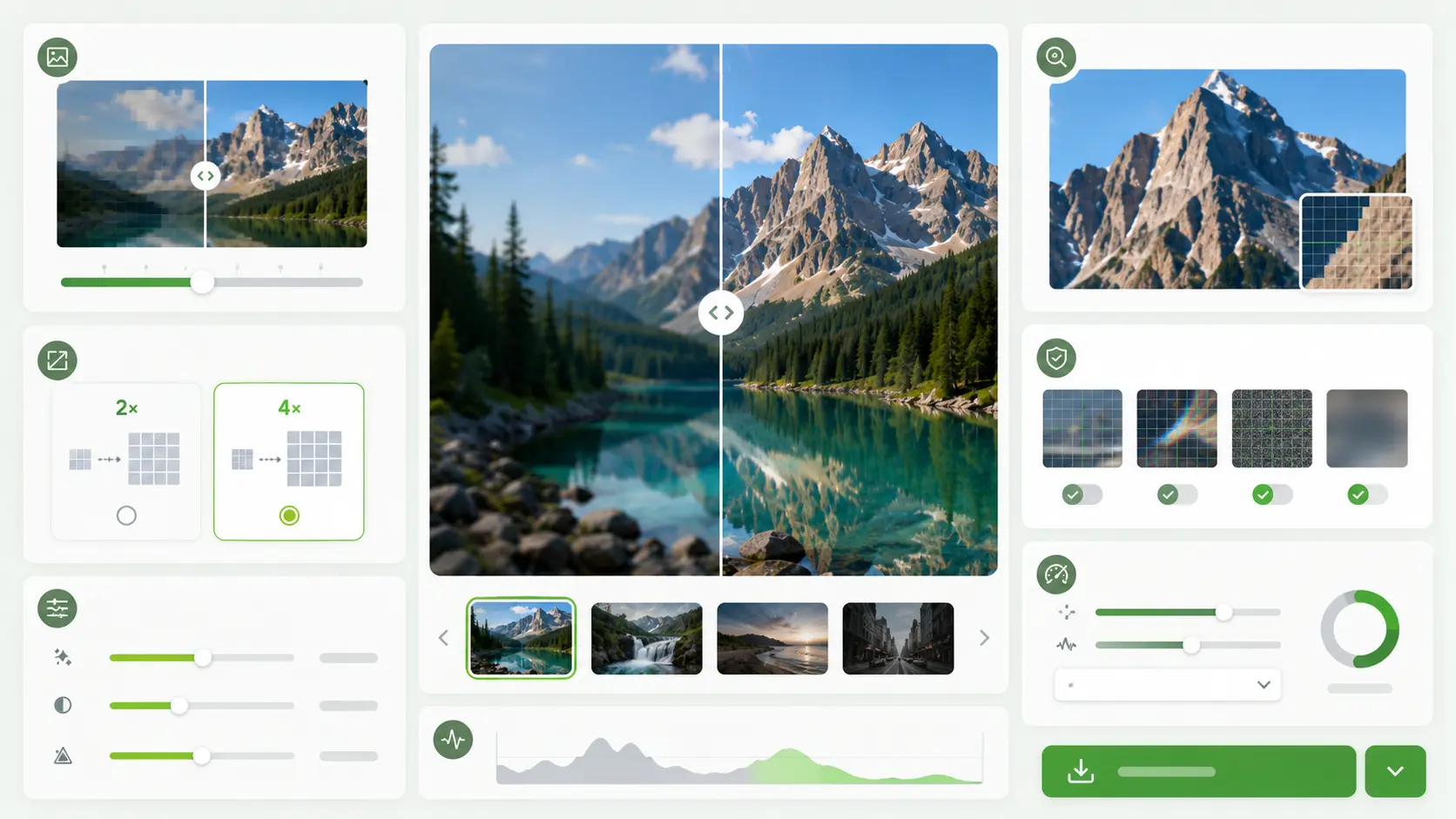
Start with the best source image available. If you have an original photo, use that instead of a screenshot or compressed social media copy. AI can improve a low-resolution image, but it usually performs better when the starting file has fewer artifacts.
Use 2x upscaling when the image only needs a moderate size increase. Use 4x upscaling when the image is much smaller than the target size. For 4K or 8K outputs, inspect details carefully, especially around faces, product edges, text, hair, fabric, and repeated patterns.
Do not over-process the same image. Running one photo through multiple enhancement tools can create unnatural textures, strange edges, or distorted details. One clean upscale followed by a careful review is usually better than several aggressive edits.
Check the final image at 100% zoom. A result can look good in a small preview but show problems when viewed at full size. This is especially important for ecommerce images, screenshots, packaging, charts, and photos with faces.
Compress the final file before publishing it on a website. A large upscaled image can slow down a page if it is uploaded without web optimization. Use modern formats and responsive sizes when possible.
FAQ
What is the best AI image upscaler?
The best AI image upscaler depends on the use case. UnblurImage is best for simple free 2x or 4x online upscaling. Linocut is best for 4K, 8K, ecommerce, marketing, and creative workflows. Adobe is best for professional editing, Canva is best for social design, and Cloudinary is best for website image delivery.
What is the best free online image upscaler?
UnblurImage is a strong free online image upscaler for users who want to upload an image, enlarge it by 200% or 400%, and download a clearer result. It is especially useful for blurry photos, old images, product previews, and AI-generated images.
Can AI make a blurry image clear?
AI can make many blurry images clearer, especially when the problem comes from low resolution, compression, or mild softness. It may not fully repair severe motion blur, heavy focus problems, or details that were never captured in the original image.
Is 2x or 4x image upscaling better?
Use 2x upscaling when the image only needs a small quality and size boost. Use 4x upscaling when the image is too small for the target use. For product photos, portraits, and screenshots, check the result at full size before publishing.
Can I use an image upscaler for ecommerce product photos?
Yes. An image upscaler can improve low-resolution product photos, sharpen edges, and make product images more useful for listings or ads. For ecommerce, review labels, textures, shadows, and edges carefully so the final image still looks natural and accurate.
Can AI upscaling improve AI-generated images?
Yes. AI-generated images are often created at smaller sizes, so upscaling can help prepare them for social posts, banners, mockups, and creative projects. Linocut is useful for larger creative workflows, while UnblurImage is useful for fast 2x or 4x enlargement.
Does image upscaling reduce quality?
Good AI upscaling can improve perceived quality by increasing resolution and cleaning up detail. Poor settings or weak source images can create unnatural textures, over-sharpened edges, or distorted text. Always compare the original and upscaled image before using it.
What image formats work best for upscaling?
High-quality JPG and PNG files usually work well. WebP and HEIC can also work when supported by the tool. The best format is the cleanest source file you have, not necessarily the smallest file.
Can AI upscaling fix JPEG artifacts?
AI upscaling can reduce the appearance of some JPEG artifacts, especially blocky compression marks around edges and flat backgrounds. It works best when the original file still has enough detail. If the JPEG is heavily compressed, the result may look cleaner but not fully restored.
Which free image upscaler works on Mac and Windows?
Browser-based image upscalers usually work on both Mac and Windows because they run online instead of inside a desktop app. UnblurImage is a practical choice for users who want a free online image upscaler that can be opened from a modern browser on either system.
Should I choose 2x, 4x, 4K, or 8K upscaling?
Choose 2x for small improvements, 4x for clearly undersized images, 4K for large web or campaign assets, and 8K for more demanding creative work. The best choice depends on the original file size, the final display size, and how closely people will inspect the image.
Final Recommendation
For most users, the best starting point is simple: use UnblurImage when you need a free online image upscaler to make blurry images clear with quick 2x or 4x clarity improvement, and use Linocut when you need higher-resolution assets for ecommerce, marketing, AI art, or creative production. This combination covers both fast image quality upscaling and more advanced 4K or 8K asset preparation.
If the image is casual, choose the fastest tool that gives a clean result. If the image supports a product, brand, campaign, or client project, choose the tool that gives you more control over detail, output size, and follow-up editing. AI upscaling works best when it is treated as a quality improvement step, not just a resize button.