इमेज रिज़ॉल्यूशन कैसे बढ़ाएं

By unblurimage.ai
2026/6/12
इमेज रिज़ॉल्यूशन कैसे बढ़ाएं
अगर फोटो zoom करने पर pixelated दिखती है, तो आमतौर पर resolution कम होता है। यह पुरानी photos, compressed social images, screenshots और छोटे product photos में आम है।
इस guide में हम देखेंगे कि image resolution कैसे बढ़ाएं ताकि image stretched न लगे। इसमें AI image upscaler, Linocut Image Upscaler, Unblurimage AI, Photoshop और Lightroom शामिल हैं।
Quick answer
बिना quality loss के resolution बढ़ाने का आसान तरीका AI image upscaler है। यह pixels को सिर्फ stretch नहीं करता, बल्कि clarity सुधारता है, pixelation कम करता है और natural details बचाता है।
Table of Contents
- Quick answer
- Resolution क्यों important है
- Image resolution क्या है
- Limits
- Quality खोए बिना resolution बढ़ाना
- Low-res photos के लिए AI upscaler
- Linocut कब use करें
- Common mistakes
- Conclusion
- FAQs
Resolution क्यों important है
Clear images website, product page और social content को professional बनाती हैं। Low-resolution image thumbnail में ठीक दिख सकती है, लेकिन enlarge करने पर pixels और blur दिखते हैं।
Image resolution क्या है?
Resolution image में मौजूद detail की मात्रा है। Digital images में इसे pixels से मापा जाता है, जैसे 1920x1080। Print में PPI या DPI भी use होते हैं।
Limits समझें
बहुत खराब original को perfect HD बनाना संभव नहीं होता। AI improve कर सकता है, लेकिन जो detail source में नहीं है उसे पूरी तरह recreate नहीं कर सकता।
Quality खोए बिना resolution कैसे बढ़ाएं
Basic resize अक्सर pixelation बनाता है। AI upscaling image content analyze करके missing details rebuild करने की कोशिश करता है।
1. Low-resolution photos के लिए AI image upscaler use करें
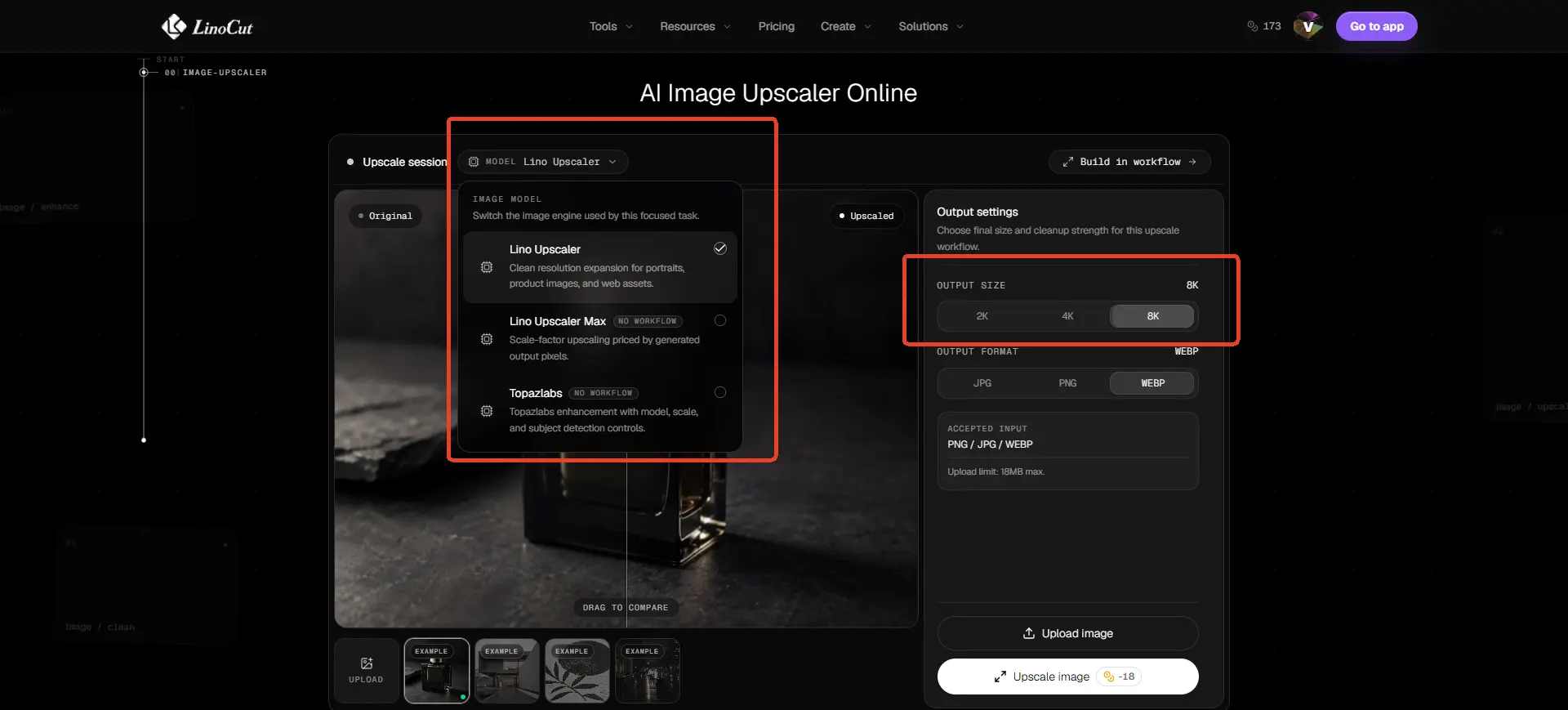
AI upscaler छोटी photos, product images और pixelated files के लिए अच्छा है। Linocut AI Image Upscaler online image enlarge करता है और stretched look कम करता है।
Linocut क्यों use करें?
- AI से low-res image enlarge और clear होती है।
- Pixelated या soft look कम होता है।
- Browser में online workflow।
- Product photos, blog images, old photos, AI art और social graphics के लिए useful।
2. Unblurimage AI जैसे tools use करें
Unblurimage AI clarity और resolution improve करने के लिए AI use करता है। यह pixels analyze करके clearer high-resolution version बनाता है।
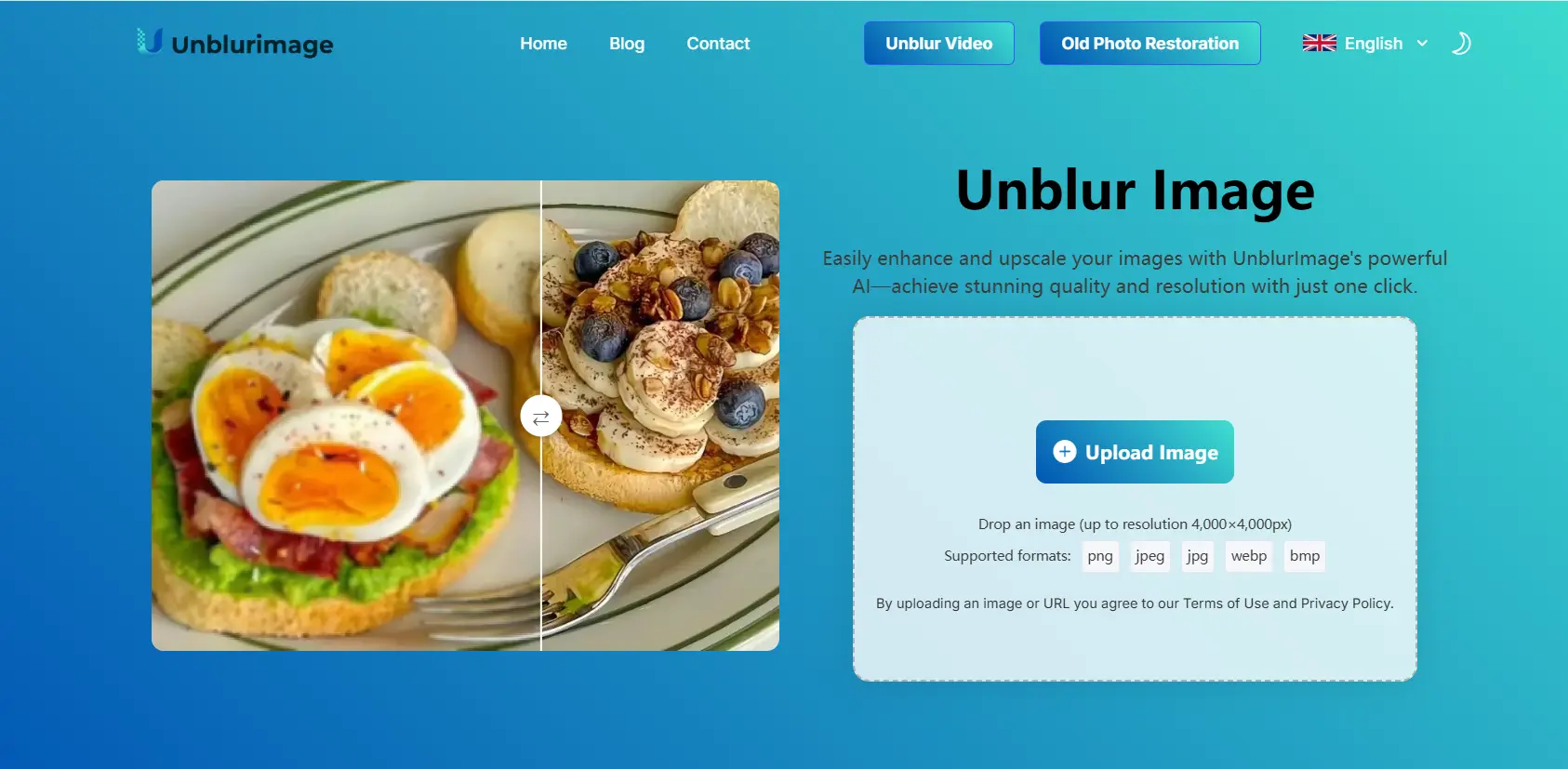
Features
- AI-powered enhancement.
- Automatic processing.
- Blurry और low-res images में अच्छे results.
- Simple interface.
- JPEG, PNG, TIFF जैसे formats support.
Steps
- Image upload करें.
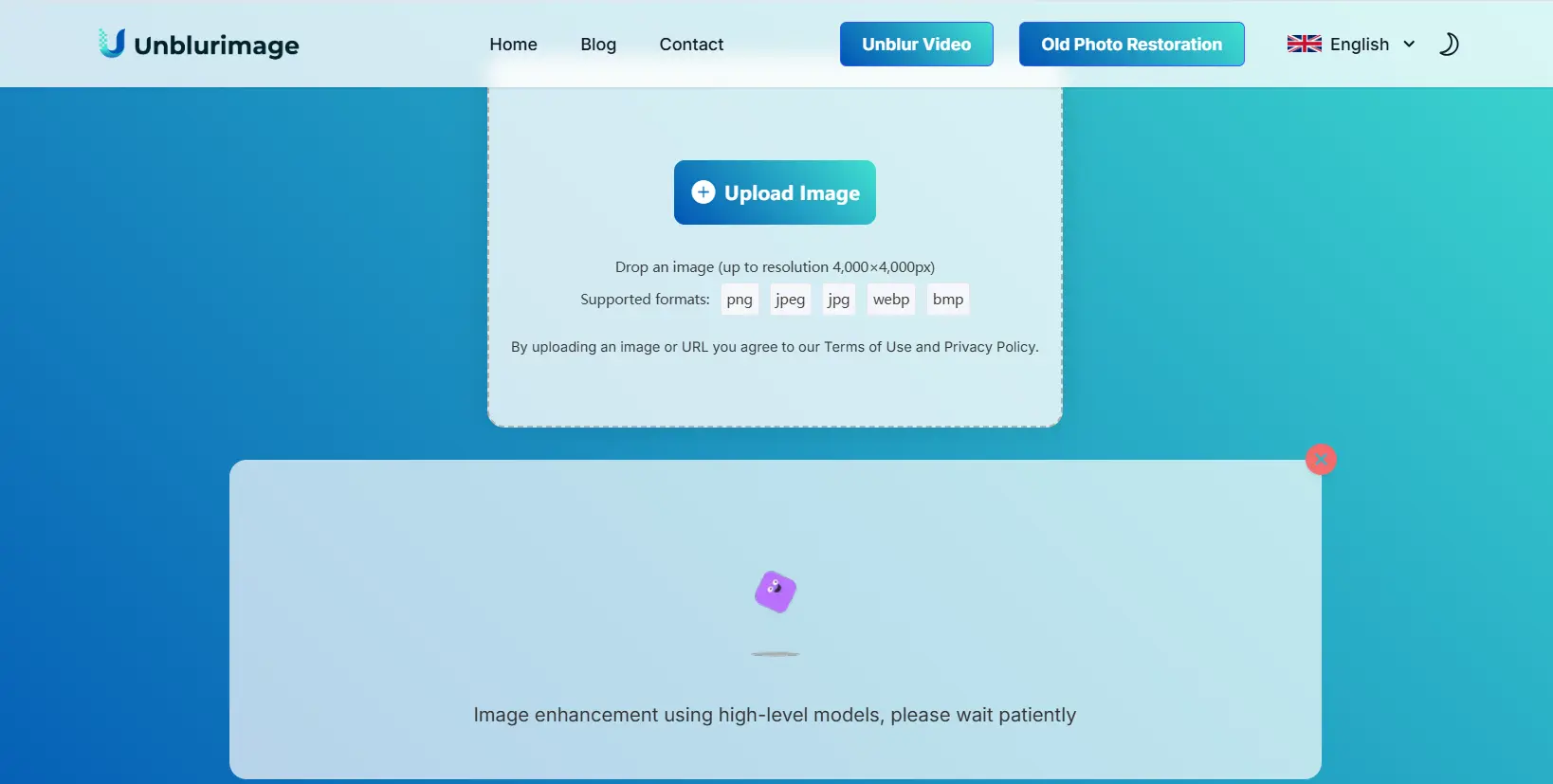
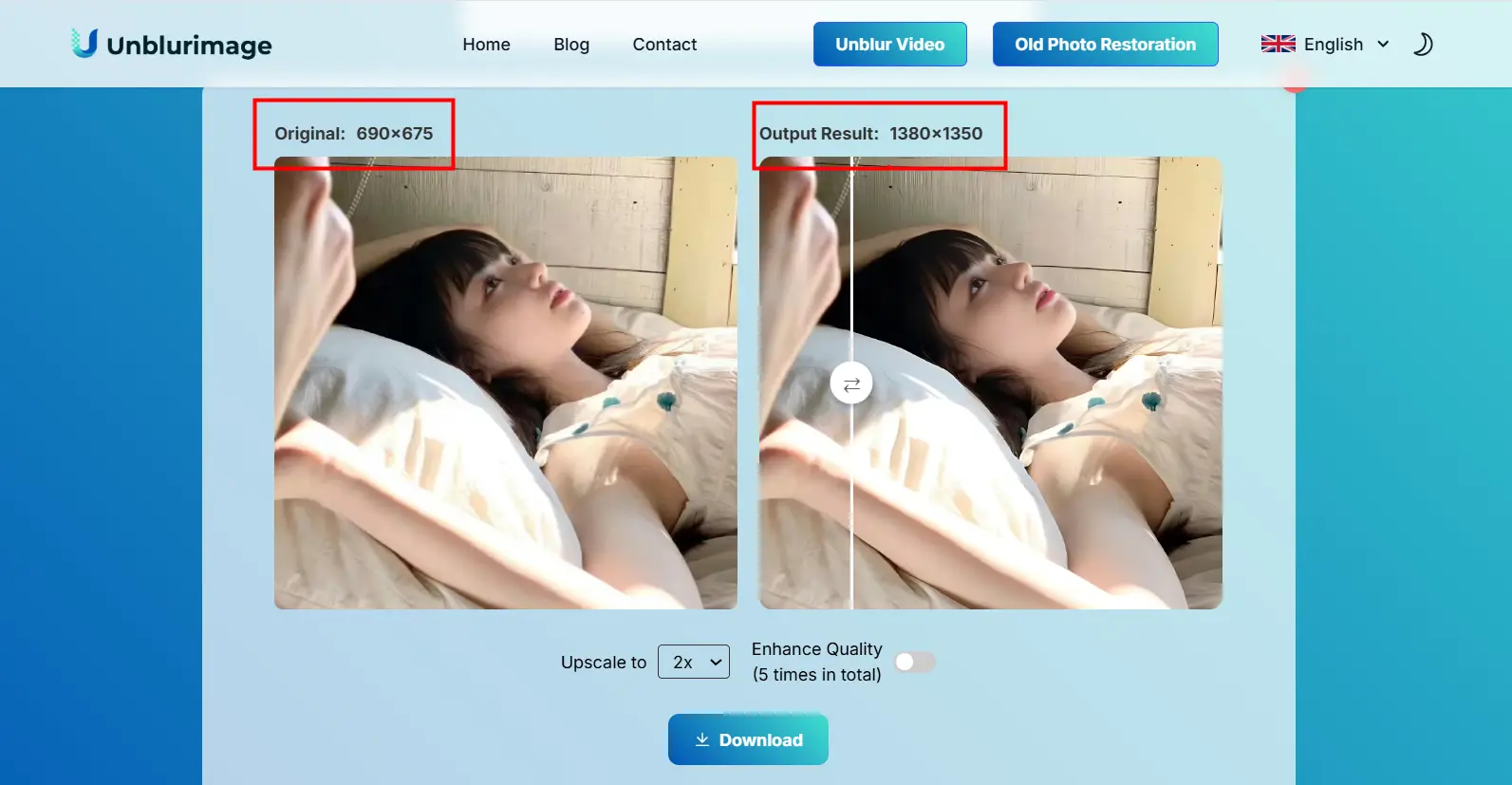
- AI process करे और 2x तक resolution बढ़ाए.
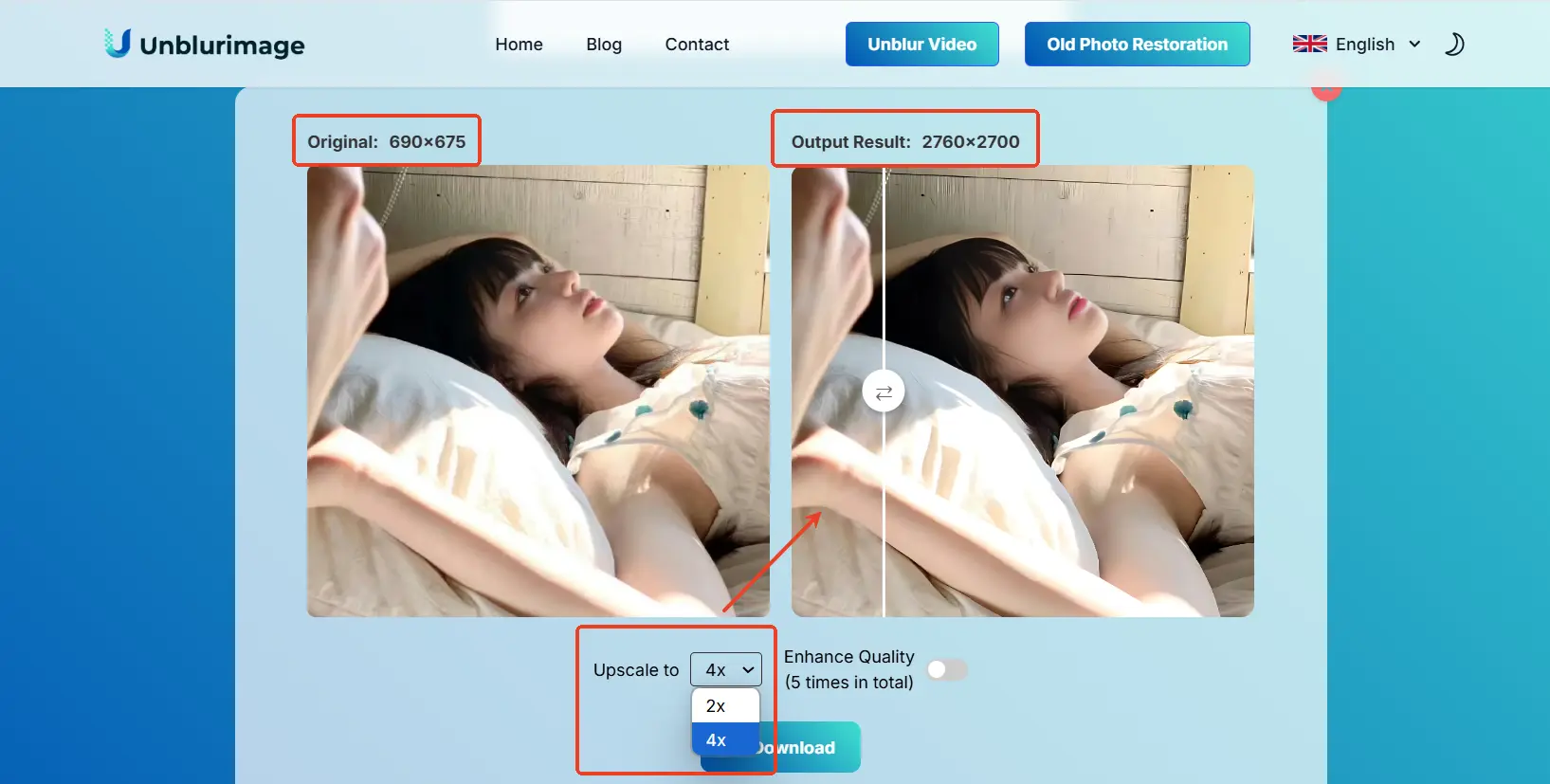
- Desired resolution चुनें, 4x तक.
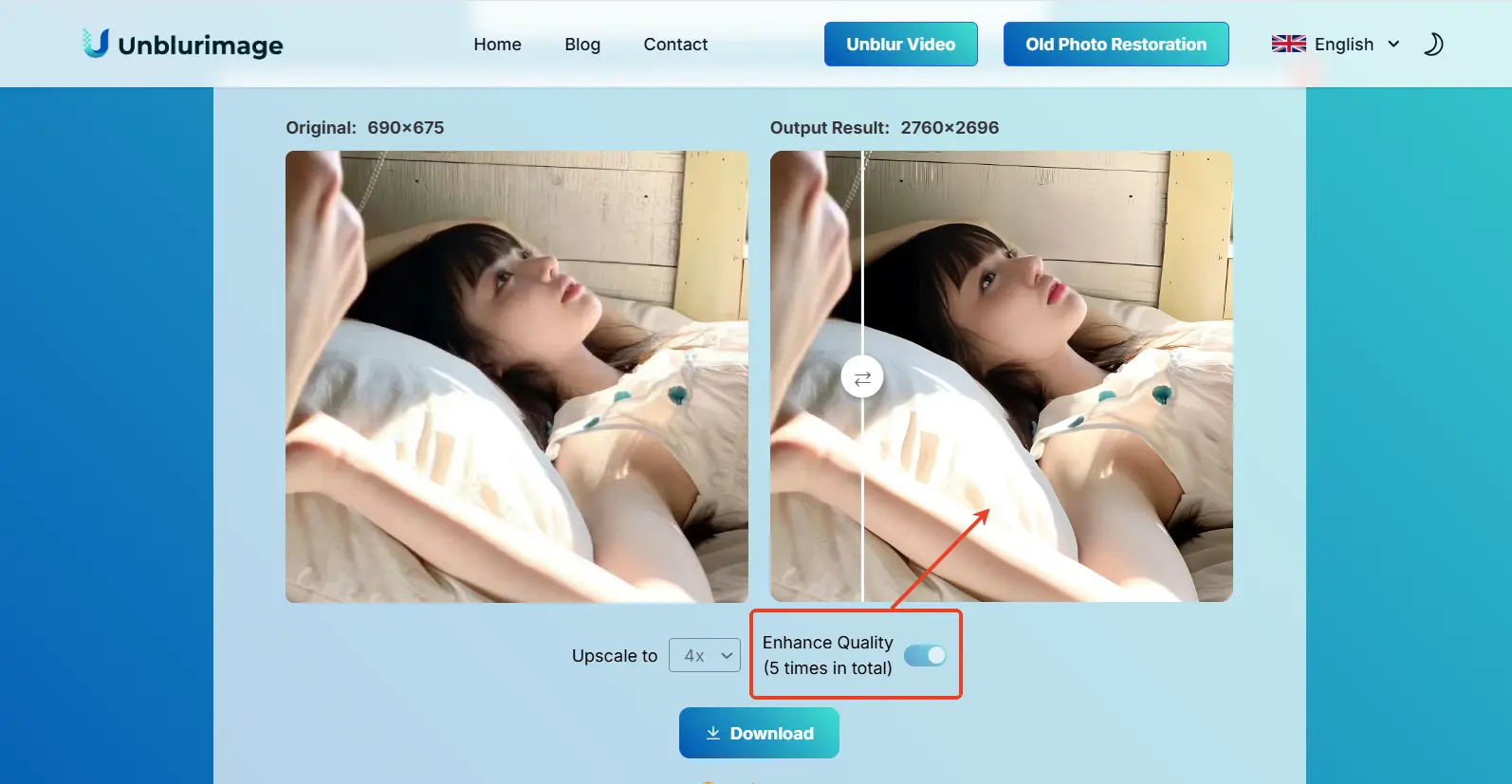
- Enhance Quality से details improve करें.
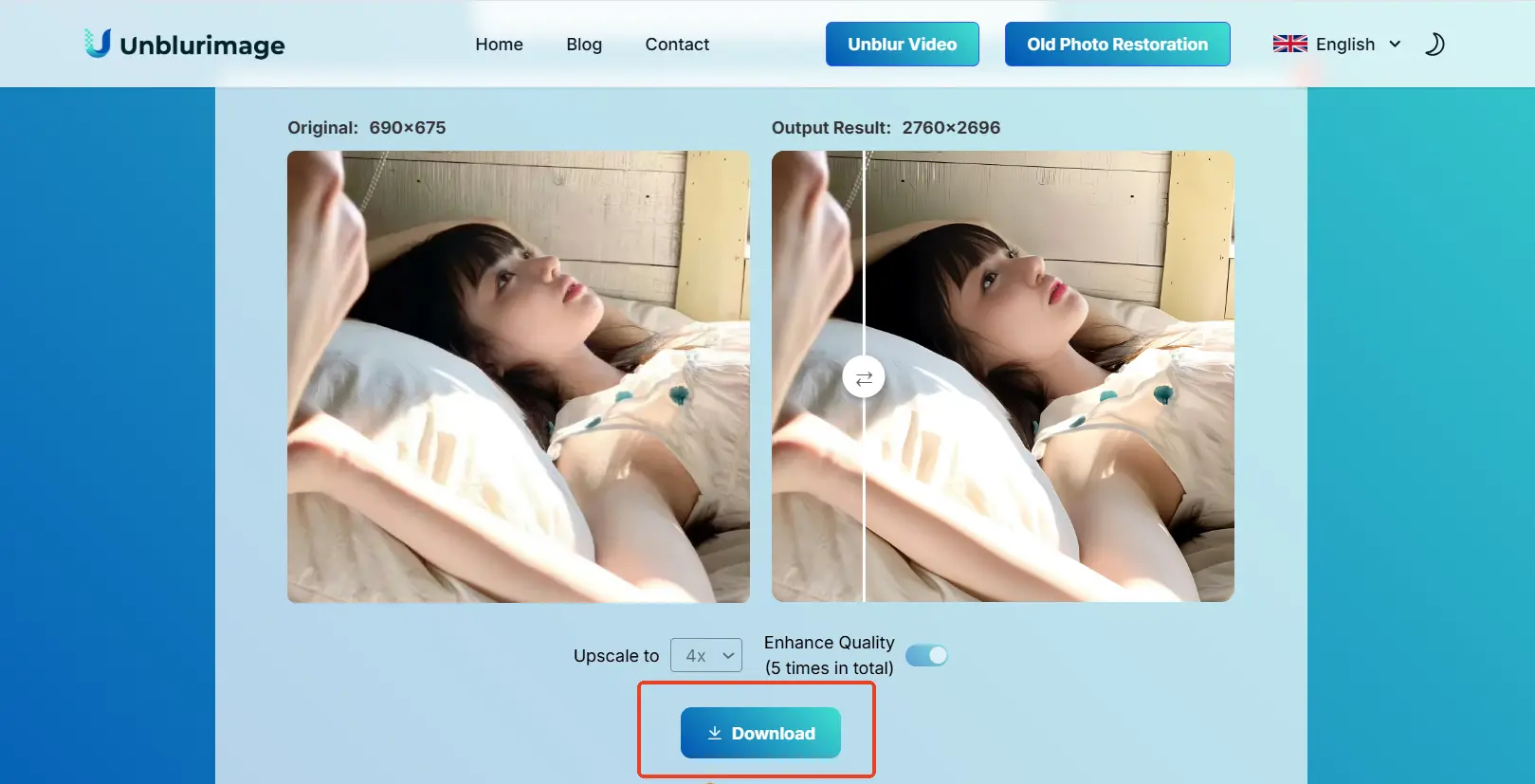
- Enhanced image download करें.
3. Traditional editing tools
Photoshop, GIMP और Lightroom manual control देते हैं।
Photoshop
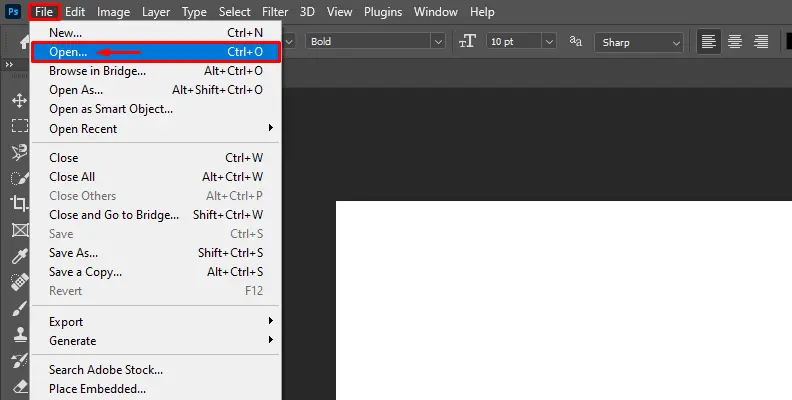
Step 1: image open करें
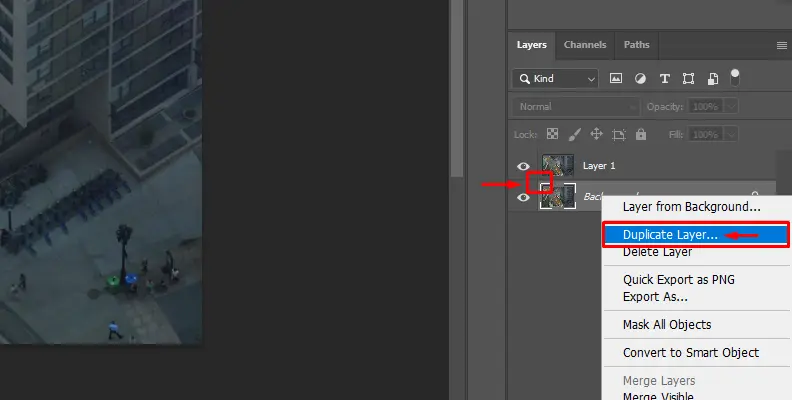
Step 2: layer duplicate करें
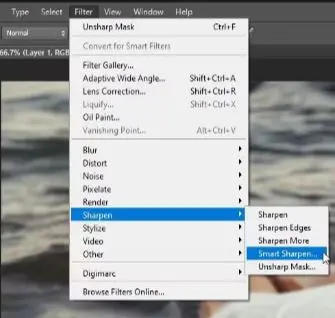
Step 3: Smart Sharpen apply करें
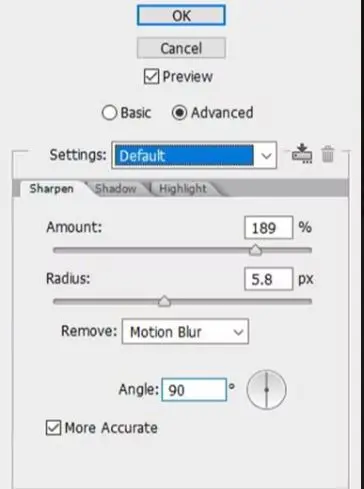
Amount और Radius carefully adjust करें ताकि artificial halo न बने।
Step 4: save करें
Lightroom
Step 1: import करें
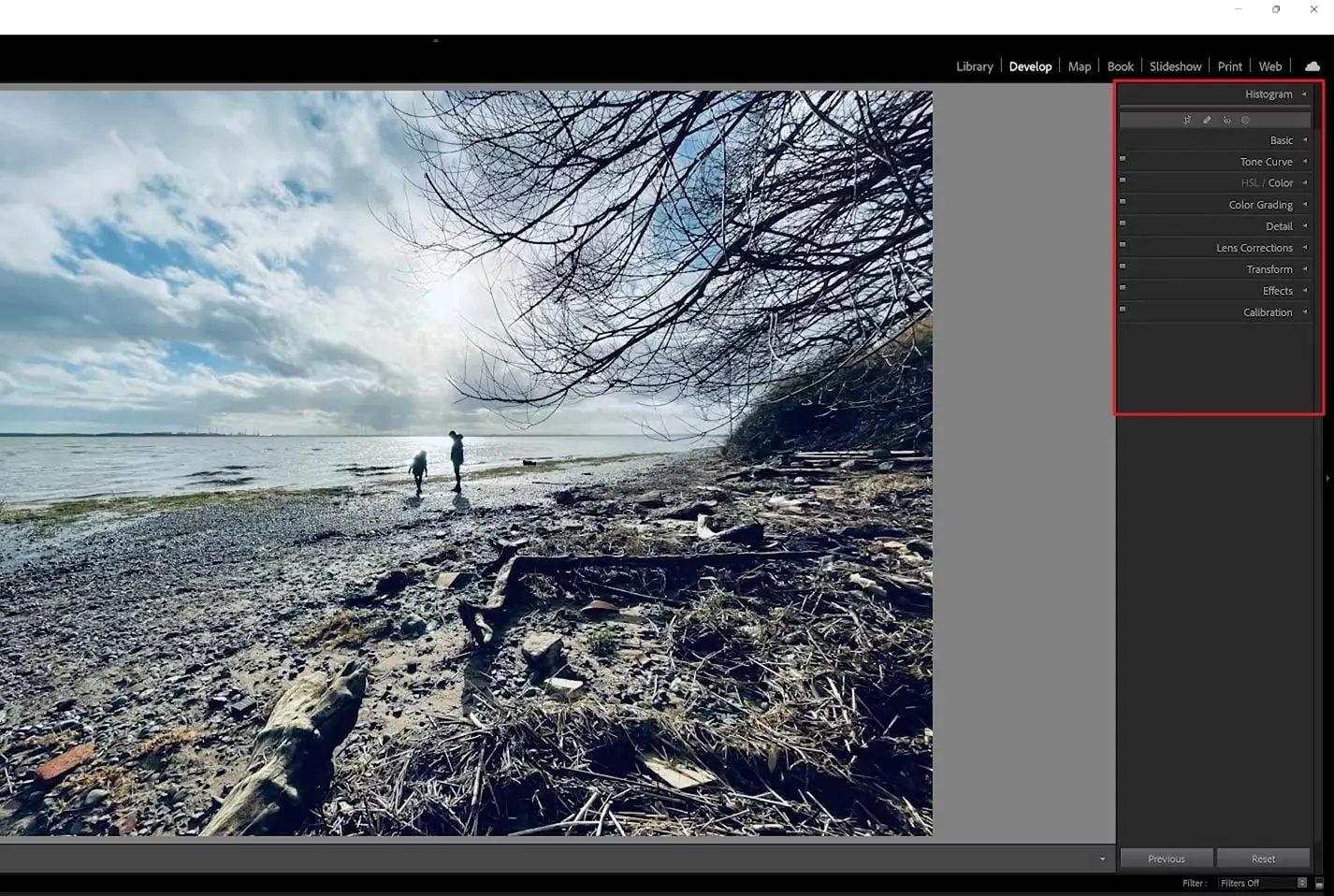
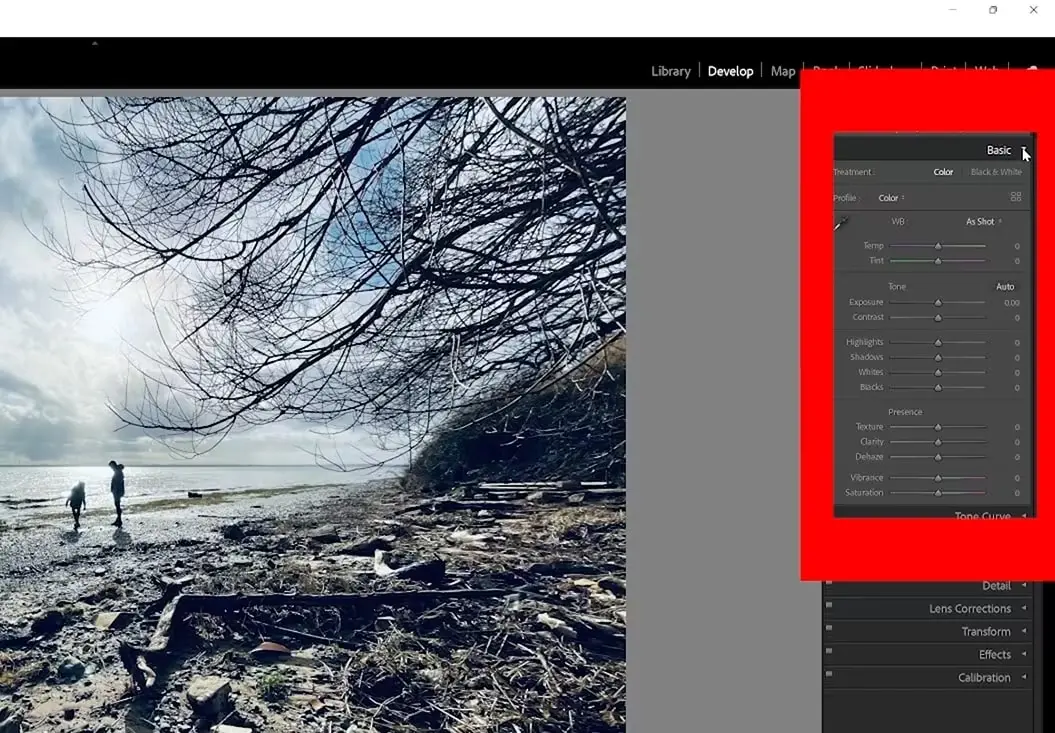
Step 2: contrast और highlights adjust करें
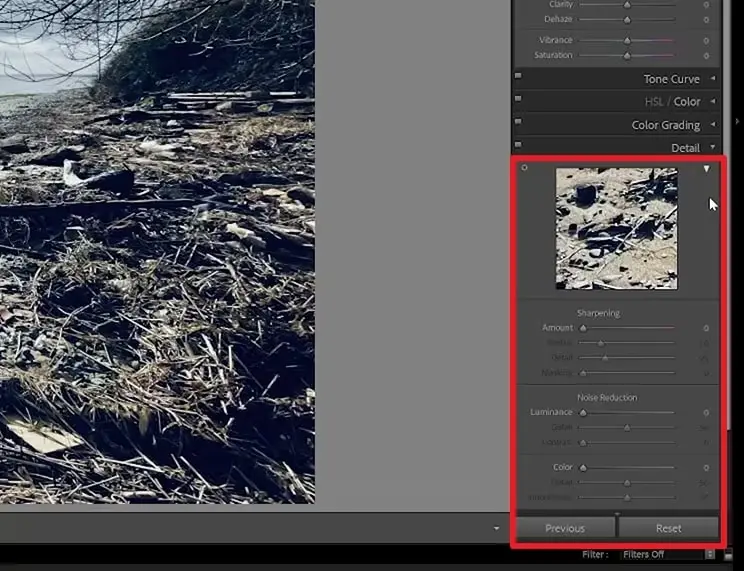
Step 3: Detail panel use करें
Step 4: export करें
Linocut AI Image Upscaler कब use करें?
जब आपको layers, sliders या export settings के बिना online resolution upgrade चाहिए, Linocut practical है। Small product photo, compressed website image, AI-generated image या old picture के लिए यह useful है।
आप pixelated images online upscale कर सकते हैं।
Common mistakes
- बहुत ज्यादा stretch करना: image unnatural लग सकती है।
- Aspect ratio ignore करना: image distorted हो सकती है।
- Low-quality original use करना: source खराब हो तो result limited रहेगा।
Conclusion
Image resolution बढ़ाना photo quality improve करने का आसान तरीका है। Social media, website, print या presentation के लिए clear images बेहतर impact देती हैं। Unblurimage AI से यह काम जल्दी और आसान होता है।
FAQs: image resolution बढ़ाना
AI image upscaler क्या है?
Tool जो image size और resolution बढ़ाते हुए clarity improve करता है।
Linocut online use कर सकते हैं?
हाँ। AI image upscaler for low-resolution images websites, social media और product photos के लिए useful है।
Upscaling और sharpening अलग हैं?
हाँ। Sharpening edge contrast बढ़ाती है; upscaling image size और resolution बढ़ाता है।
Photoshop के बिना resolution कैसे बढ़ाएं?
Unblurimage AI, Fotor या PineTools जैसे online tools use करें।
Resolution बढ़ाने से quality घटती है?
Basic resize में घट सकती है, लेकिन AI tools pixelation risk कम करते हैं।
AI सच में resolution improve करता है?
हाँ। AI details enhance और pixelation reduce कर सकता है।
कैसे पता चले resolution enough है?
Final size पर image check करें। अगर clear है, resolution enough है।
क्या हर image improve हो सकती है?
Original quality पर depend करता है। Extremely low-res images की limits होती हैं।
Unblurimage AI का advantage?
यह automatic, fast और easy है; manual settings की जरूरत नहीं।
कितना resolution बढ़ सकता है?
Source पर depend करता है, आमतौर पर 4000x4000px तक जा सकता है।
Use करना आसान है?
हाँ। Upload करें, resolution चुनें, AI process करेगा।
Free है?
हाँ, आप image resolution enhance करने के लिए free use कर सकते हैं।